
How to install the GTM template
This guide shows you how to track an ecommerce event in Google Tag Manager and send it to Picked. You need a GTM container and your Picked Tag ID.
Automatic installation
Install the template from the GTM Community Gallery:
- In Tag Manager, click Templates.
- In the Tag Templates section, click Search Gallery.
- Search for
Picked Ecommerce. - Click the Picked Ecommerce template to read its detail.
- Click the Add to workspace button.
- Read the permissions that it needs.
- Click Add.

Manual installation
To import the template file yourself:
- Download the template file from GitHub with the download icon.
- In Google Tag Manager, go to Templates.
- Click New.
- Open the three-dot menu.
- Click Import.
- Choose the file that you downloaded.
- Click Save.
Setup
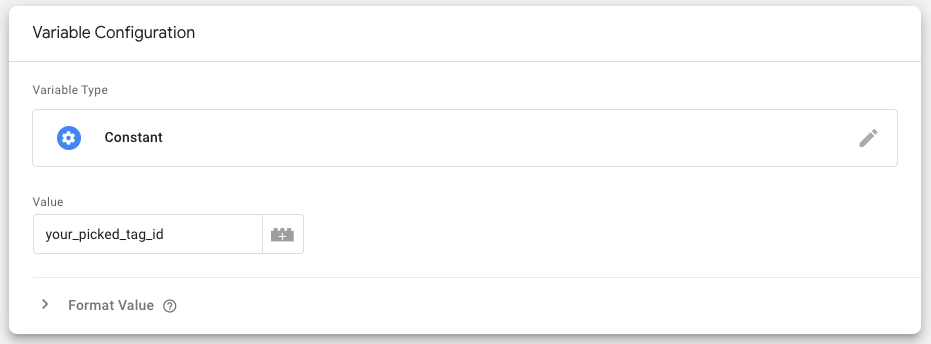
1. Create a Tag ID variable
Sign in to the Picked Dashboard and copy the Tag ID of
your project. Save it as a constant variable in GTM, for example Picked Tag ID.
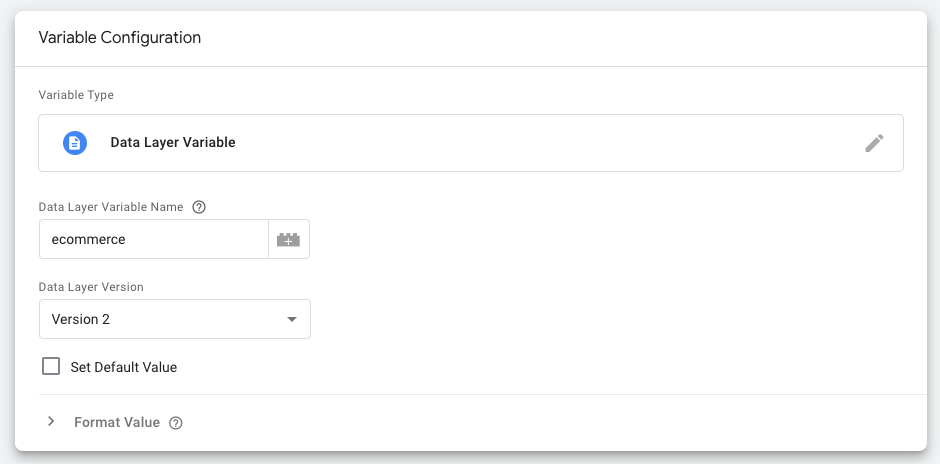
2. Create an ecommerce data variable
Create a Data Layer Variable with the variable name ecommerce. It captures what
GA4 Enhanced Ecommerce writes to the data layer.
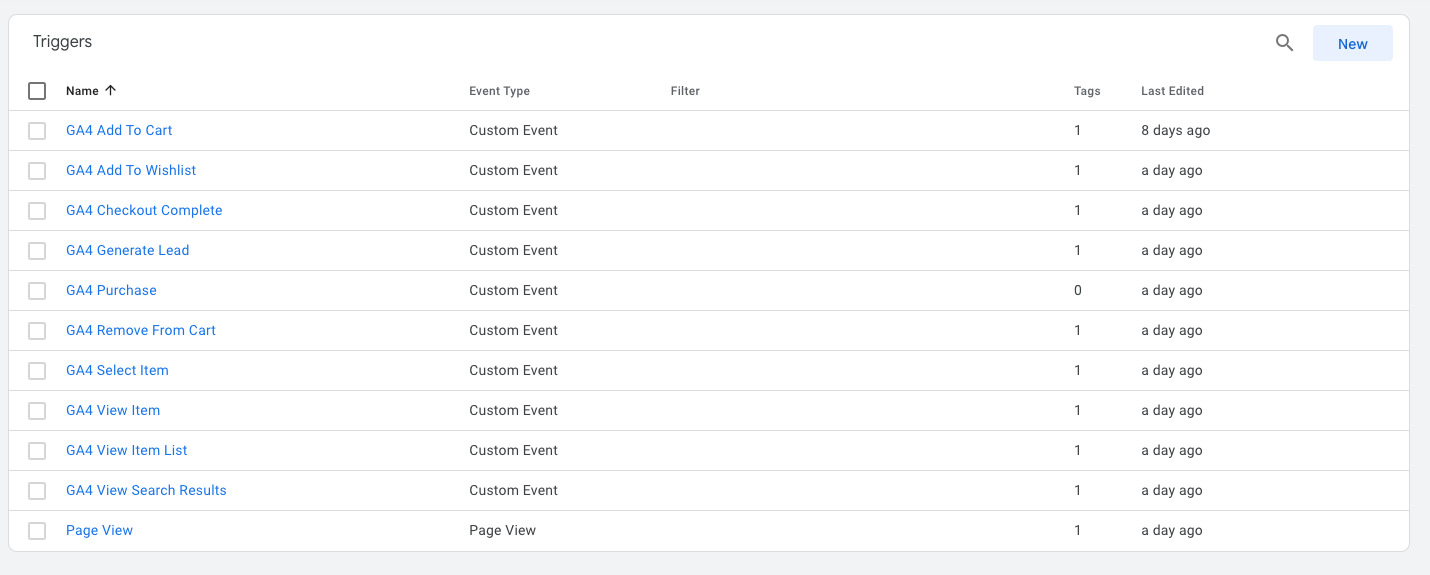
3. Create event triggers
Add a trigger for each ecommerce event that you want to track, for example
add_to_cart, purchase, or view_item.
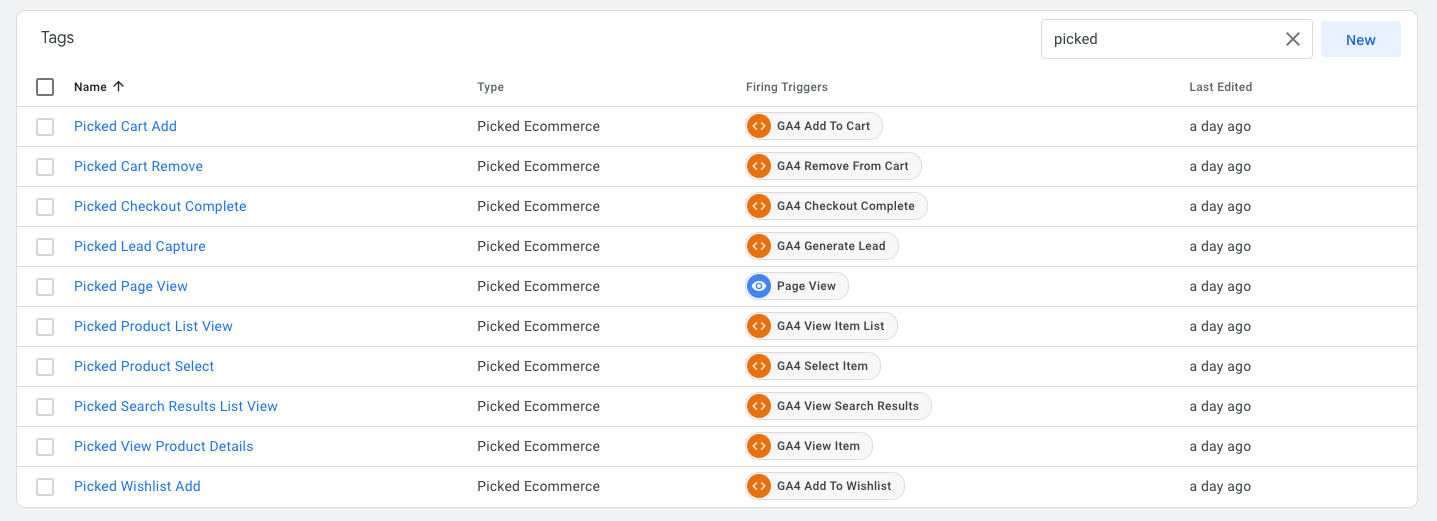
4. Create tags
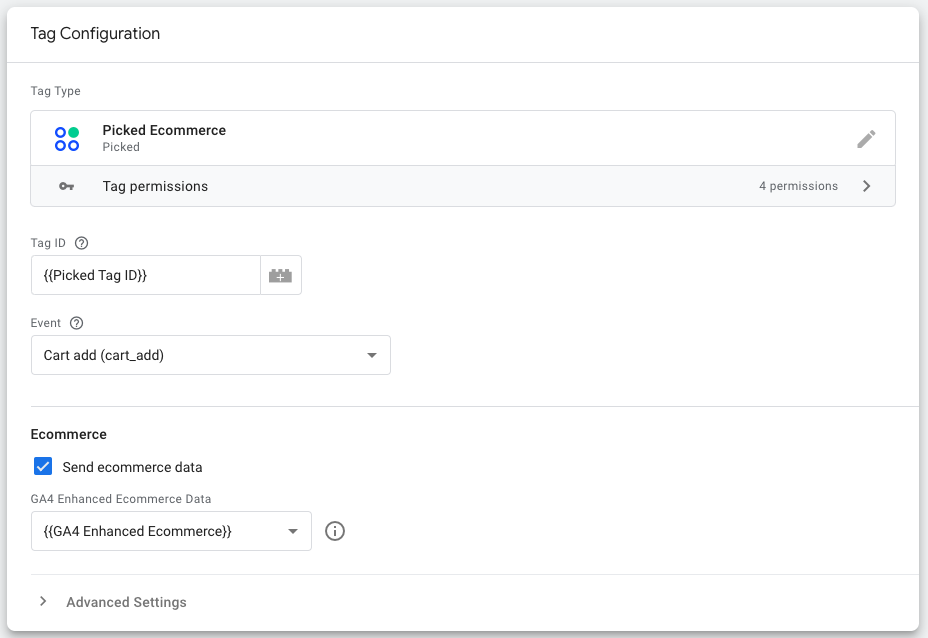
Create a new tag for each event. Choose the tag template called Picked Ecommerce. Assign the trigger that matches. Then set the options below.
Options
| Option | Description |
|---|---|
| Tag ID | The Tag ID of your Picked project. Find it in the Picked Dashboard. |
| Event | The ecommerce event to track, for example add_to_cart or purchase. |
| Send ecommerce data | Turn this on to send the data from GA4 Enhanced Ecommerce to Picked. Turn it on for every ecommerce event. |
| GA4 Enhanced Ecommerce Data | The GTM variable that holds the data from GA4 Enhanced Ecommerce. Use the data layer variable from step 2. |
| Additional data | An optional GTM variable, for more metadata with the event. |
Related
- About how Picked works — what Picked does with the event.